Adding MCQs to an Assignment
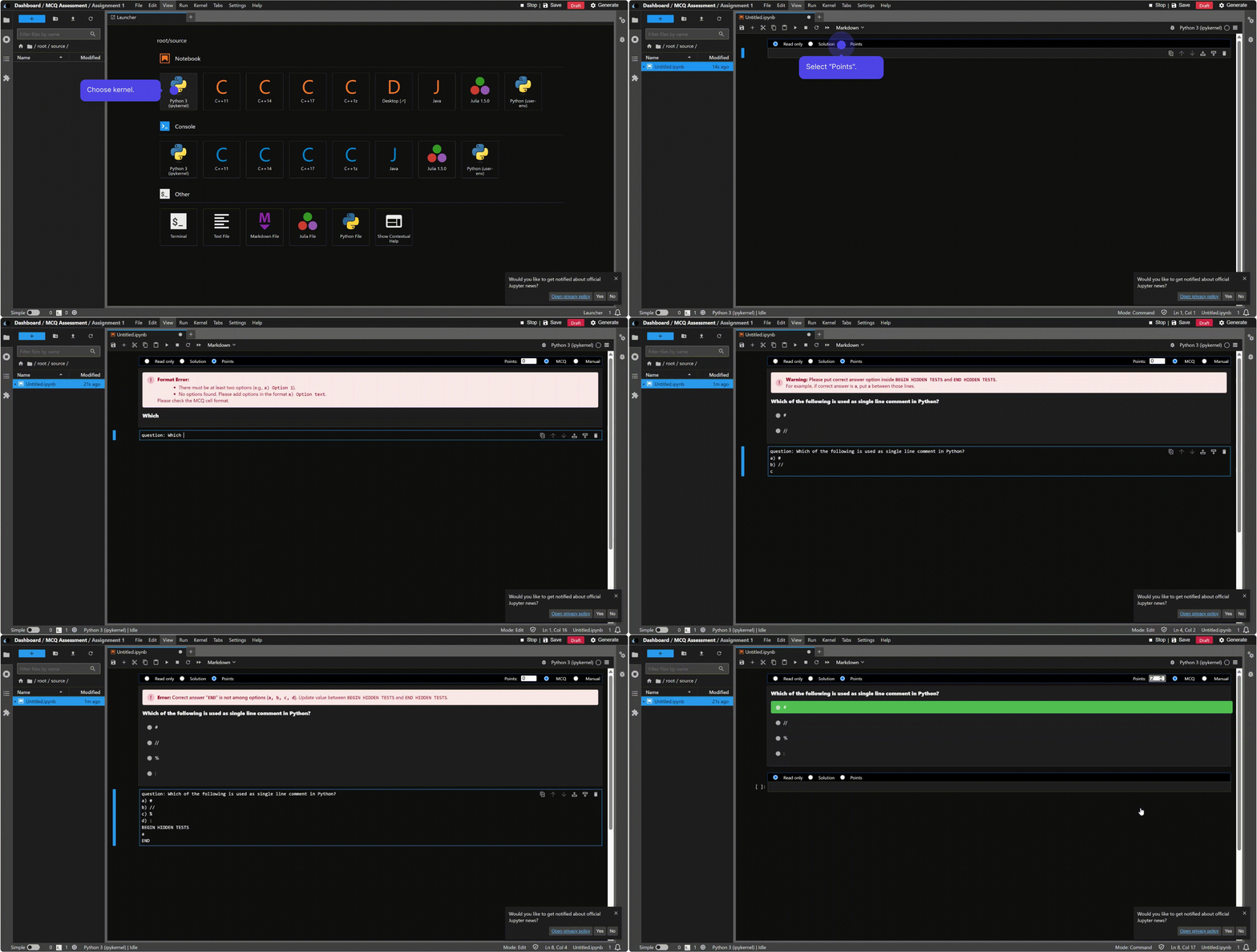
Follow these steps to create a Multiple Choice Question (MCQ) in a notebook assignment:
1. Set Cell Type to Markdown
- Select the target cell.
- Open the cell type dropdown (default: Code) and choose Markdown.
- Markdown formatting is required for MCQ content.

2. Open the Assignment Toolbar
- Locate the toolbar above the cell.
- Click "Points" to mark the cell as a Point Cell.
- Under grading options, select "MCQ".

3. Add MCQ Content
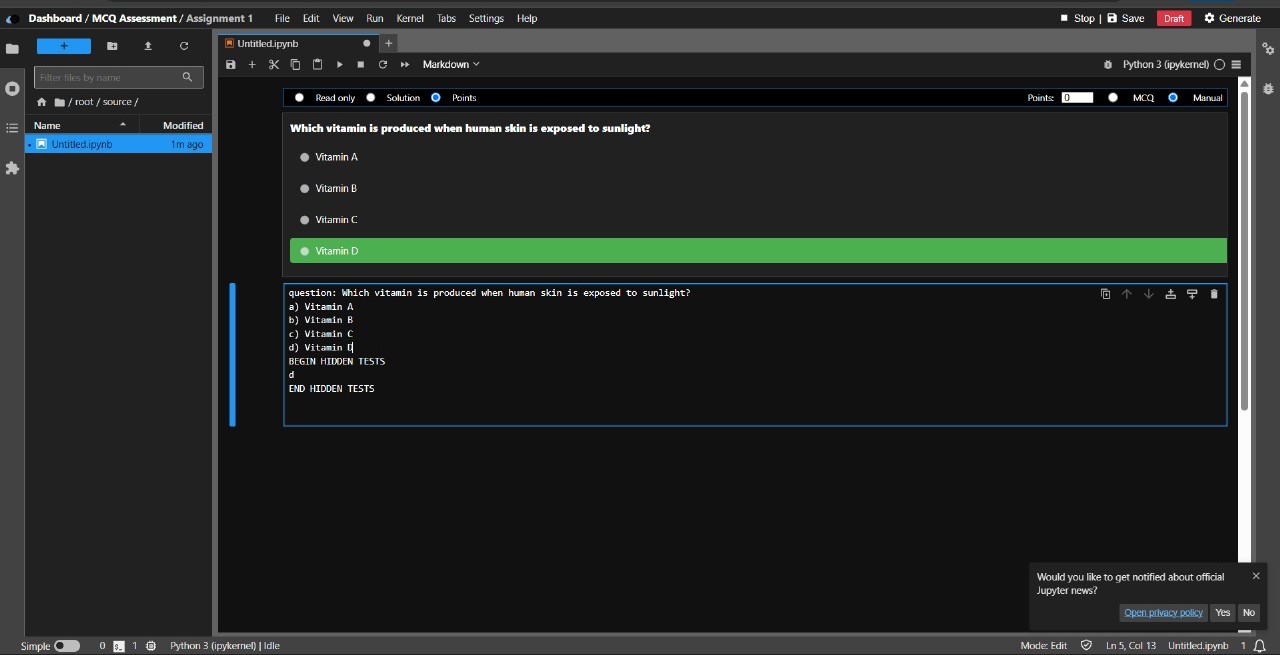
Write your question and answer choices in the following format:
question: What is the capital of France?

a) London
b) Paris
c) Berlin
d) Madrid
Add the correct answer inside a hidden test block:
BEGIN HIDDEN TESTS
b
END HIDDEN TESTS
Note
- Only include the correct option letter (e.g., b).
- Maintain proper spacing and line breaks.
- The hidden answer is not visible to students.
4. Assign Points
- Enter the score in the Points box on the toolbar.
- Points count toward the total assignment grade.
That’s it — your MCQ is now configured for auto‑grading within the assignment.