Integrate Lab.Computer with any LTI Consumer
Lab.Computer supports LTI (Learning Tools Interoperability), enabling seamless integration with any compatible LMS such as Canvas, Moodle, or Blackboard. This integration allows assignments, grading, and student data to flow automatically between your LMS and Lab.Computer.
Canvas: quicker setup with one URL
For Canvas, you can use Dynamic Registration and enter a single URL instead of filling in keys and URLs manually. See Canvas Dynamic Registration.
Prerequisite: Admin access in Canvas to create developer keys and configure external apps.
Create an LTI Developer Key in Canvas
Navigate in Canvas:
- Admin → All Accounts → Site Admin → Developer Keys → + LTI Key (New LTI Key)
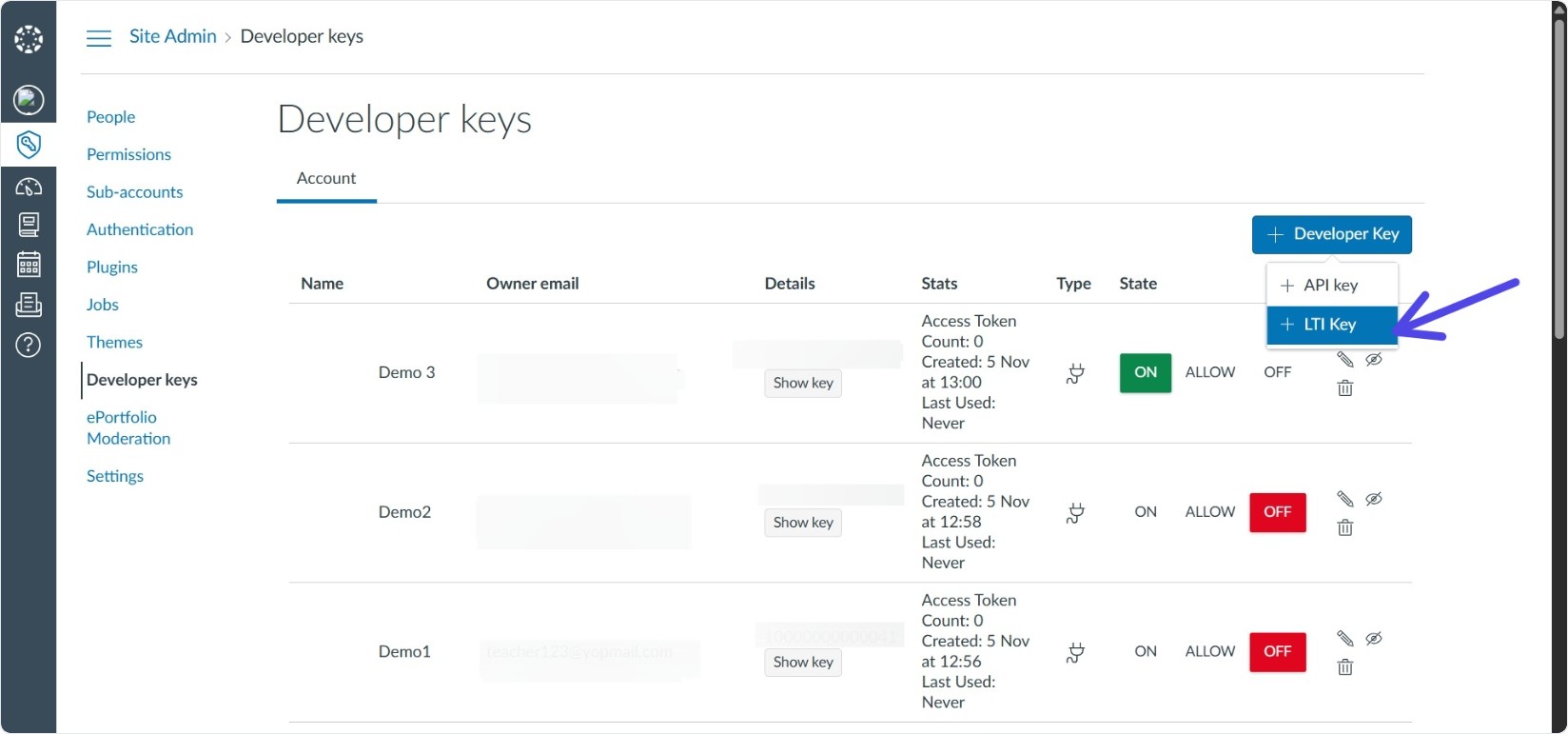
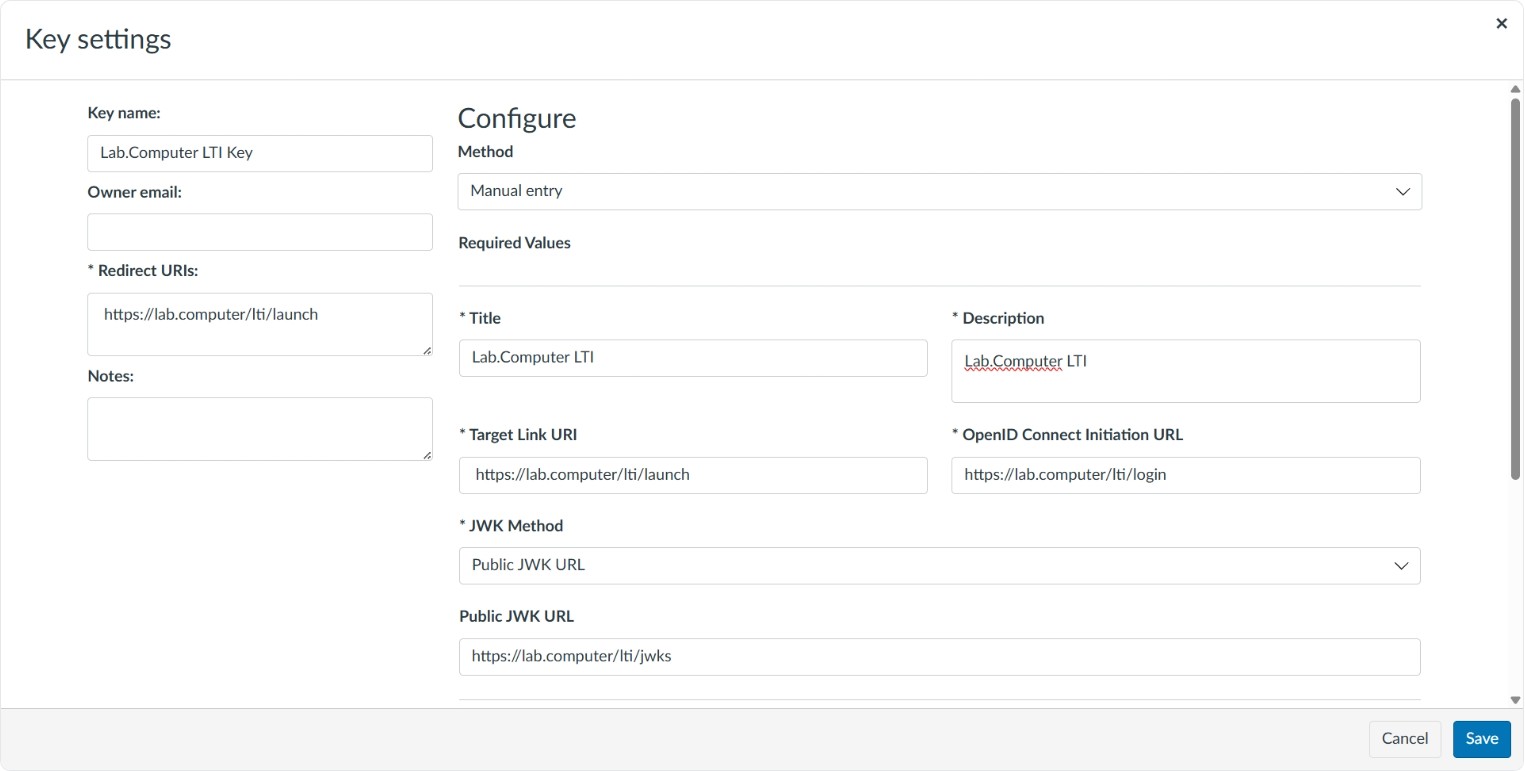
Fill in required fields:
- Key Name: Any identifiable name for the integration
- Owner Email: Your email address
- Redirect URIs:
https://lab.computer/lti/launch
Manual Entry Configuration:
- Method: Manual Entry
- Title: Your choice
- Description: Detailed description
- Target Link URI:
https://lab.computer/lti/launch - OpenID Connect Initiation URL:
https://lab.computer/lti/login - JWK Method: Public JWK URL
- Public JWK URL:
https://lab.computer/lti/jwks
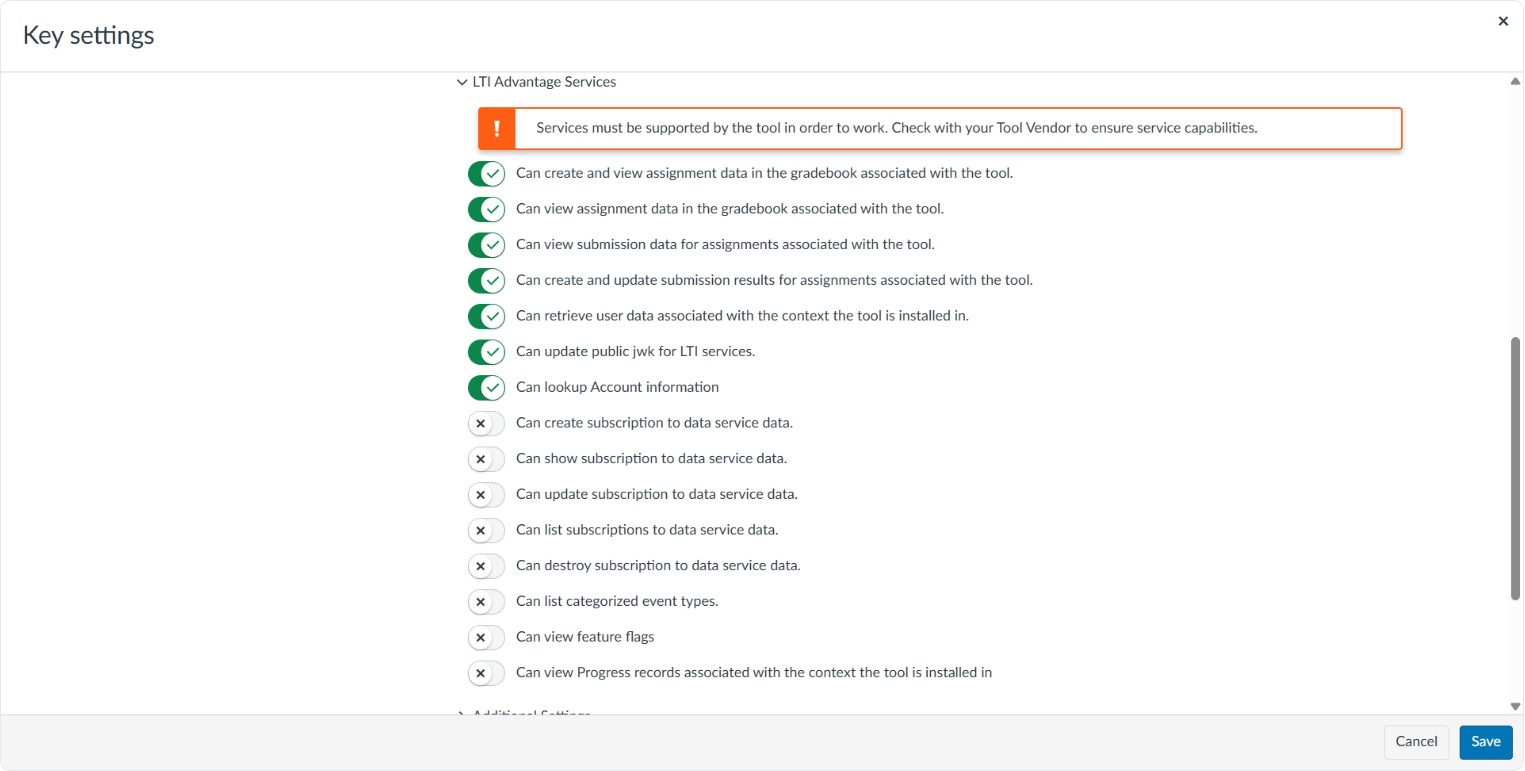
Enable LTI Advantage Services:
- Create and view assignment data in the gradebook
- View submission data
- Create/update submission results
- Retrieve user data for the course context
- Update public JWK for LTI services
- Lookup account information
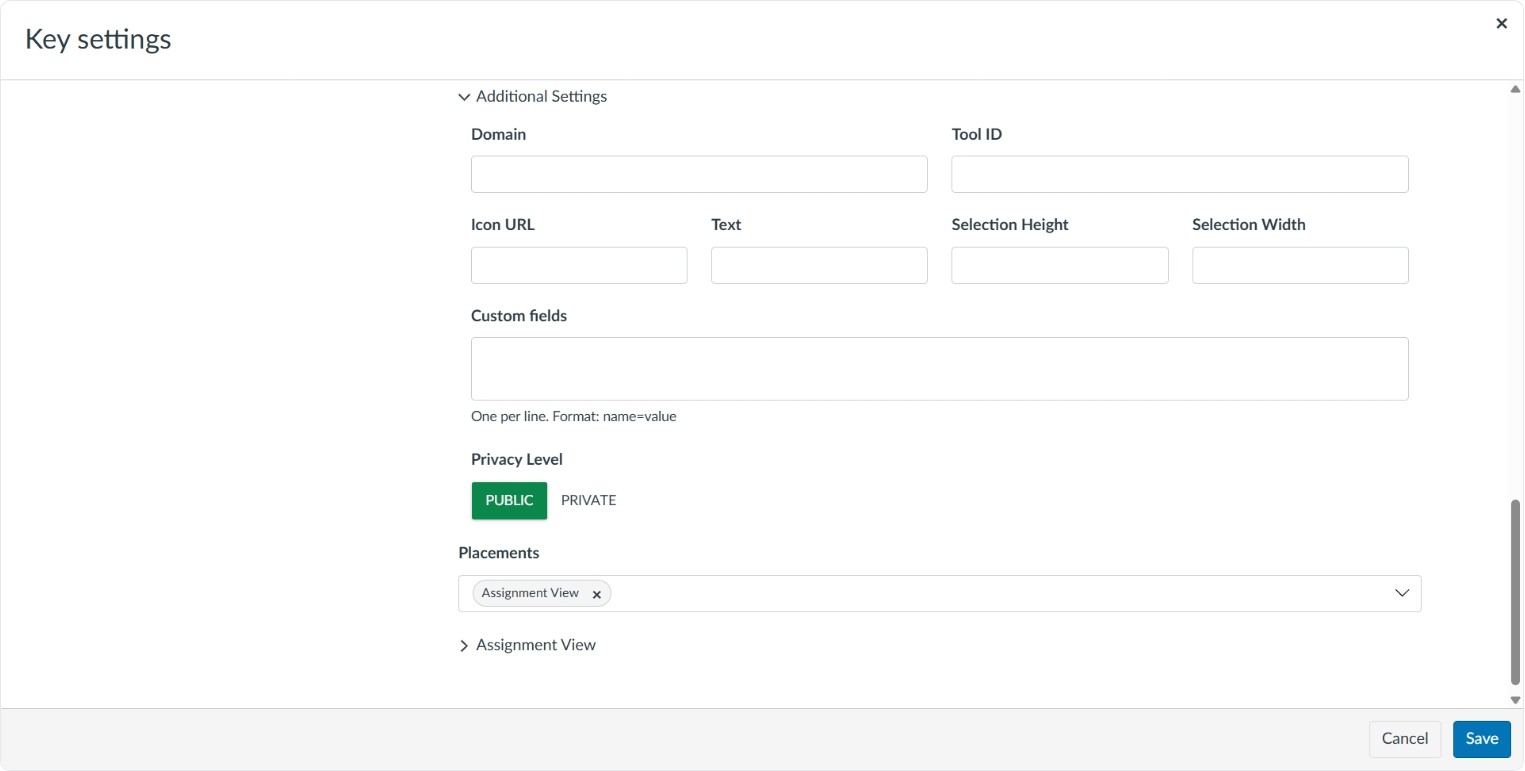
Additional Settings:
- Privacy Level: Public
- Placements: Remove defaults and select only Assignment View
- Change State: Toggle ON
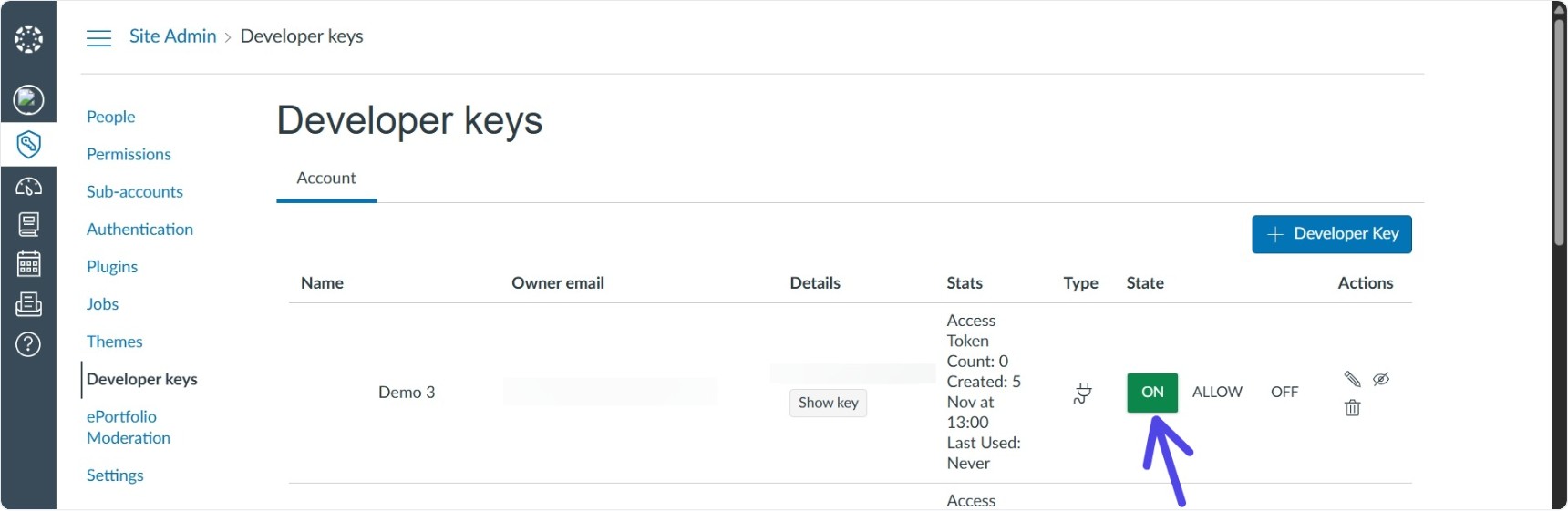
Get Client ID
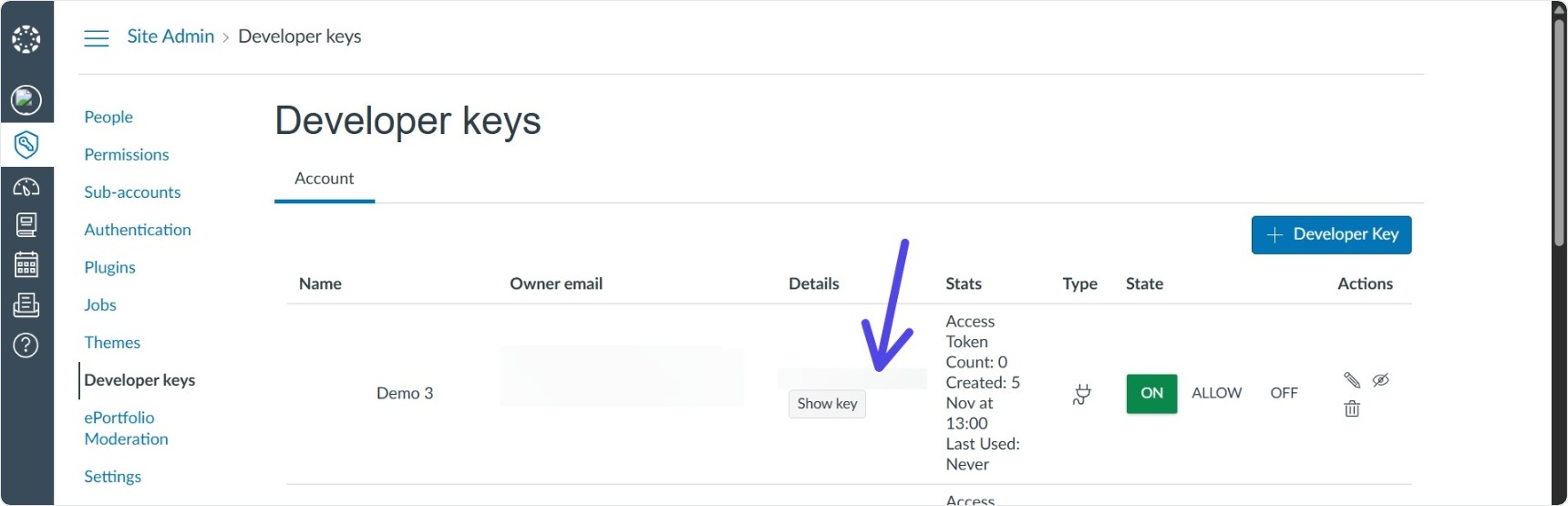
Go to: Admin → All Accounts → Site Admin → Developer Keys → LTI Key
In the Details column, locate the Client ID above the Show Key button. Keep this handy for deployment in your course.
Deploy LTI Key to Your Course
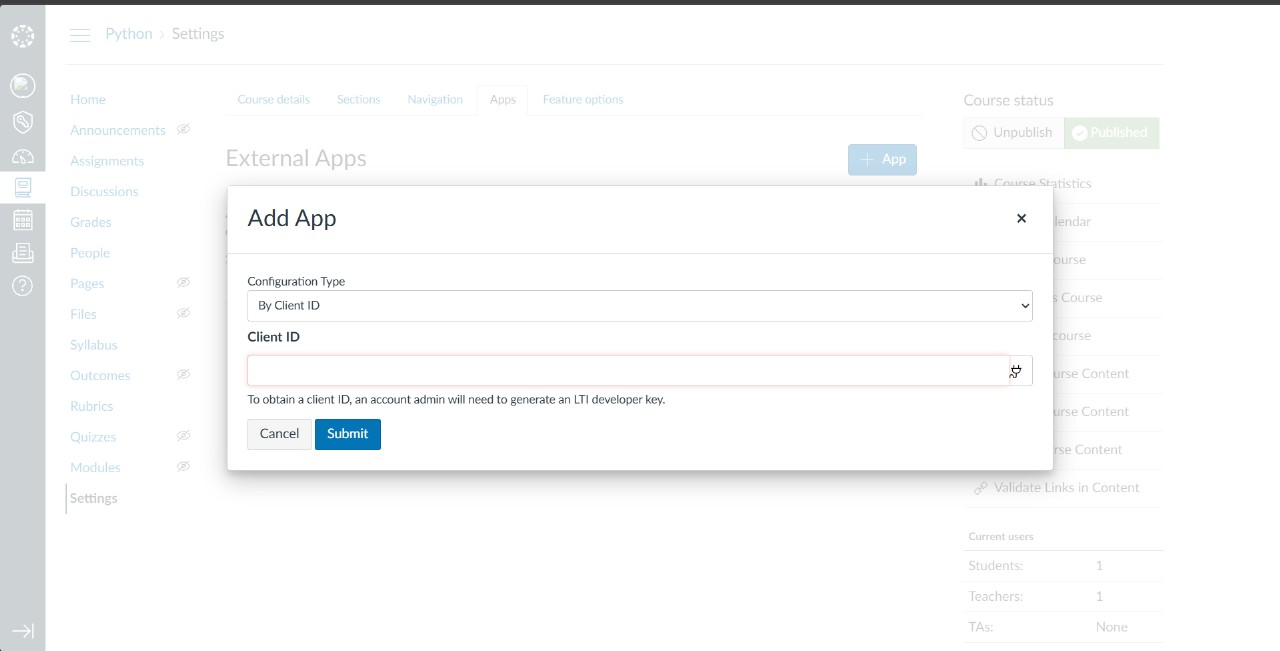
- Open your Canvas course.
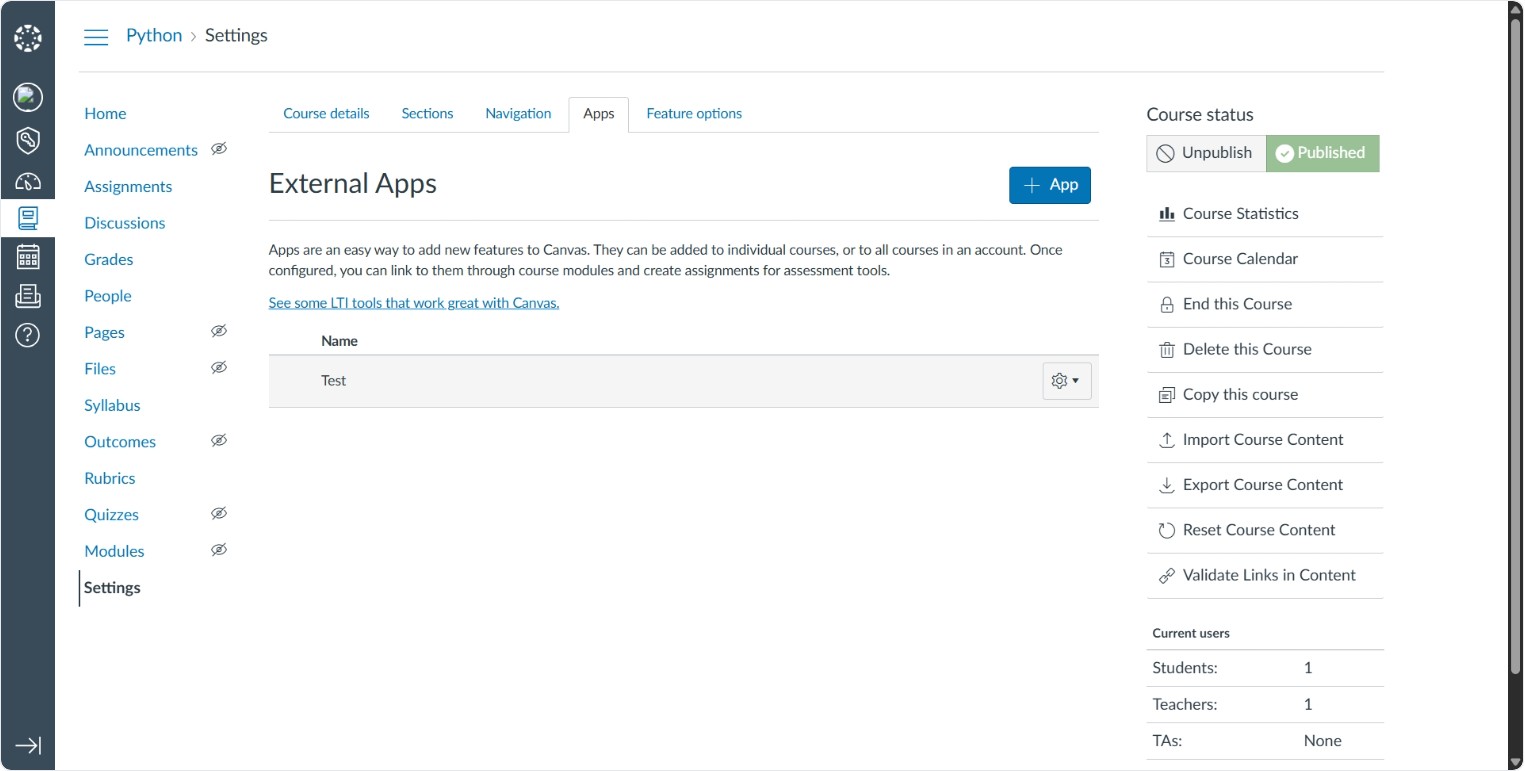
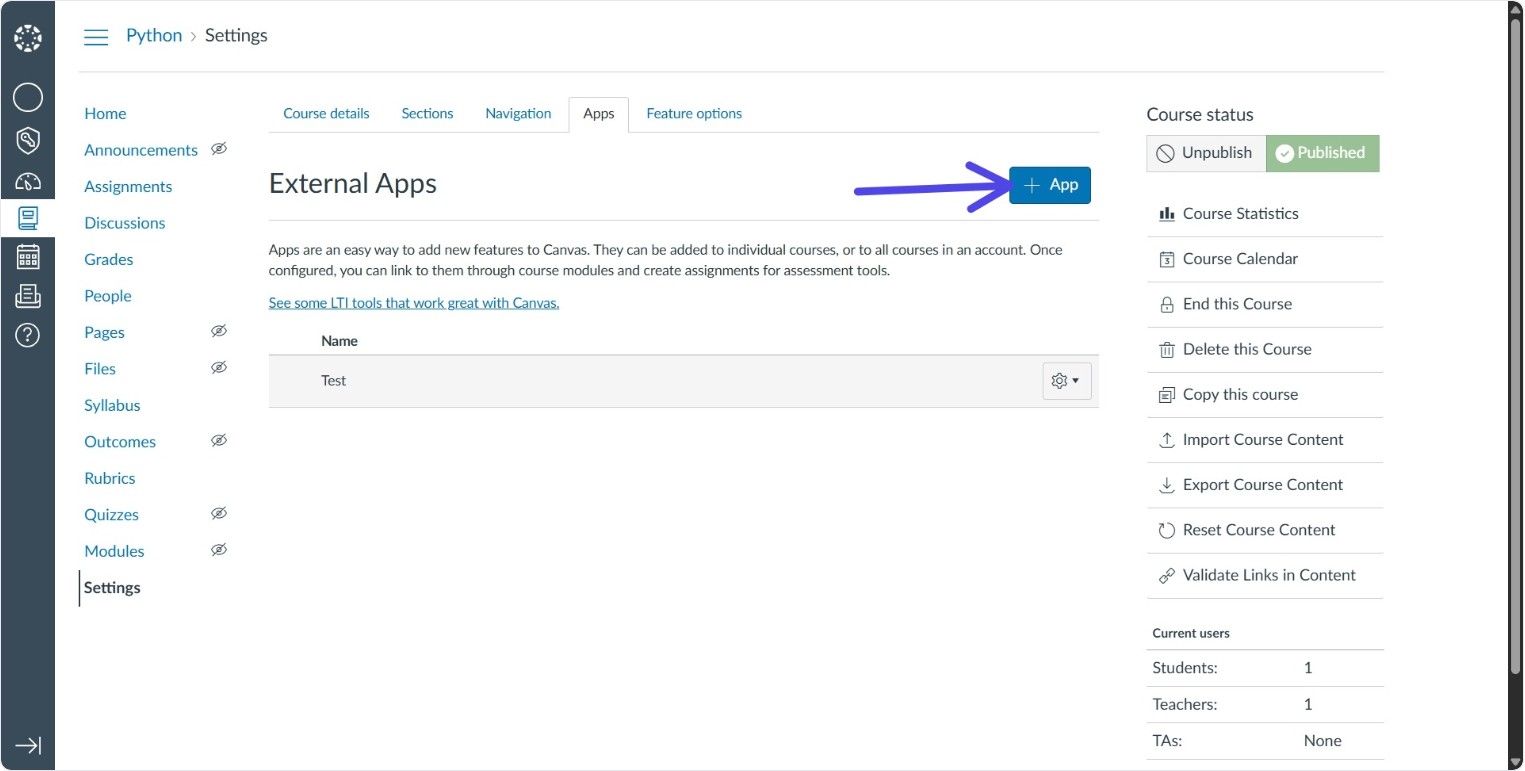
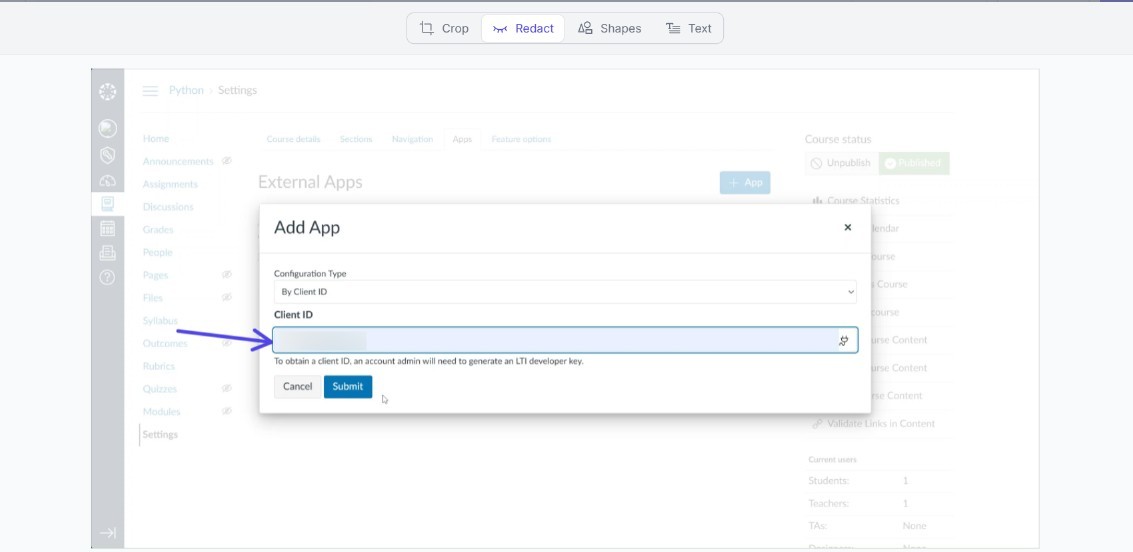
- Navigate to: Settings → Apps → Add → By Client ID
- Enter the Client ID and click Submit
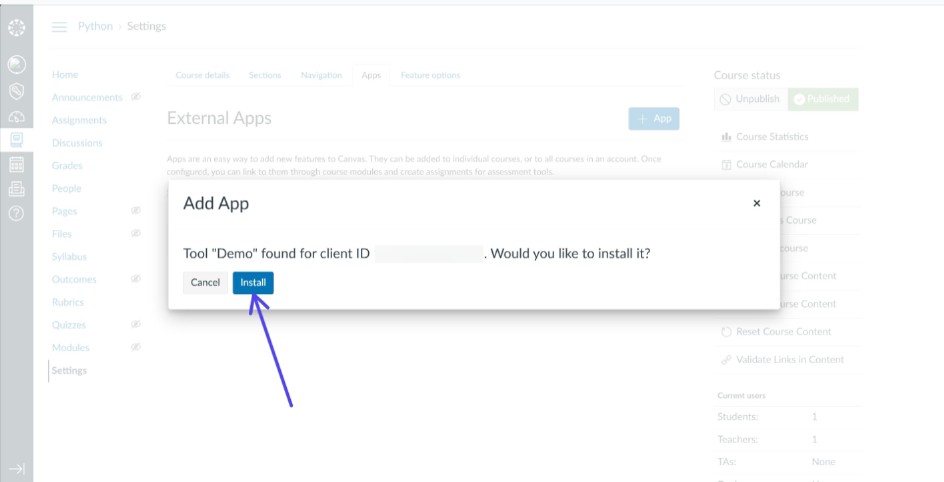
- In the modal, click Install to add Lab.Computer as an external app
The Deployment ID is automatically generated.
Configure Lab.Computer
- Send Client ID and Deployment ID to the Lab.Computer team via email.
- Lab.Computer will verify and enable the integration for your account.
Summary
- Developer Key: Identifies Lab.Computer in Canvas
- Client ID: Deploys the LTI app in a course
- Deployment ID: Links the external app instance to a specific course
- Permissions: Ensure LTI Advantage services are enabled for assignments, submissions, and user data
After setup, Lab.Computer assignments, grading, and student submissions integrate directly into Canvas gradebooks.