Install Assignment-Level Packages
Each course in Lab.Computer runs in its own Ubuntu environment. Any software, libraries, services, or datasets installed at the assignment level are automatically available to all assignments in that course.
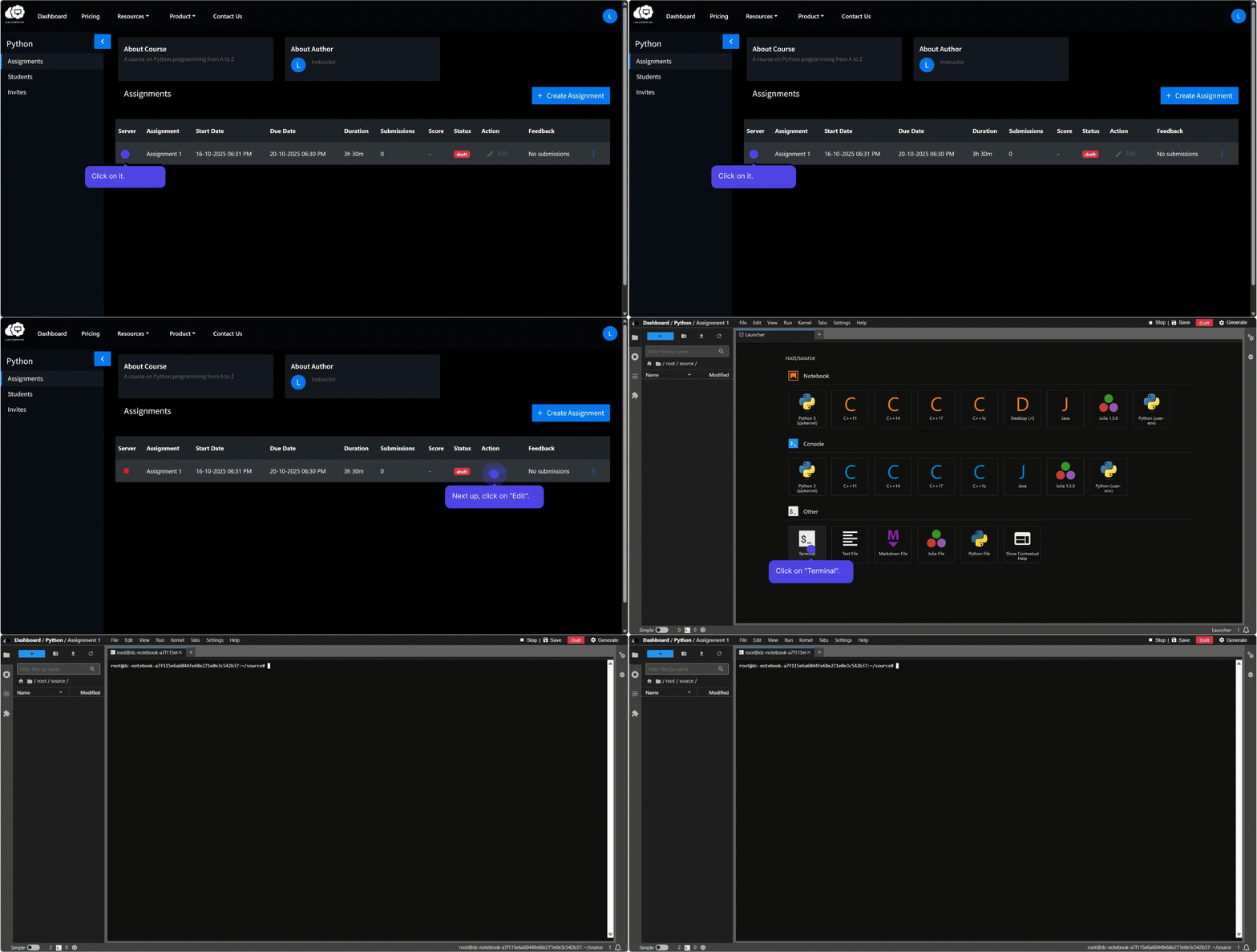
Opening a Terminal
From the notebook home page, select Terminal under the Other section.
This opens a shell with the necessary permissions to install packages and run system commands.
Note
You can also open a terminal from within a notebook by going to File → New → Terminal in the menu bar.
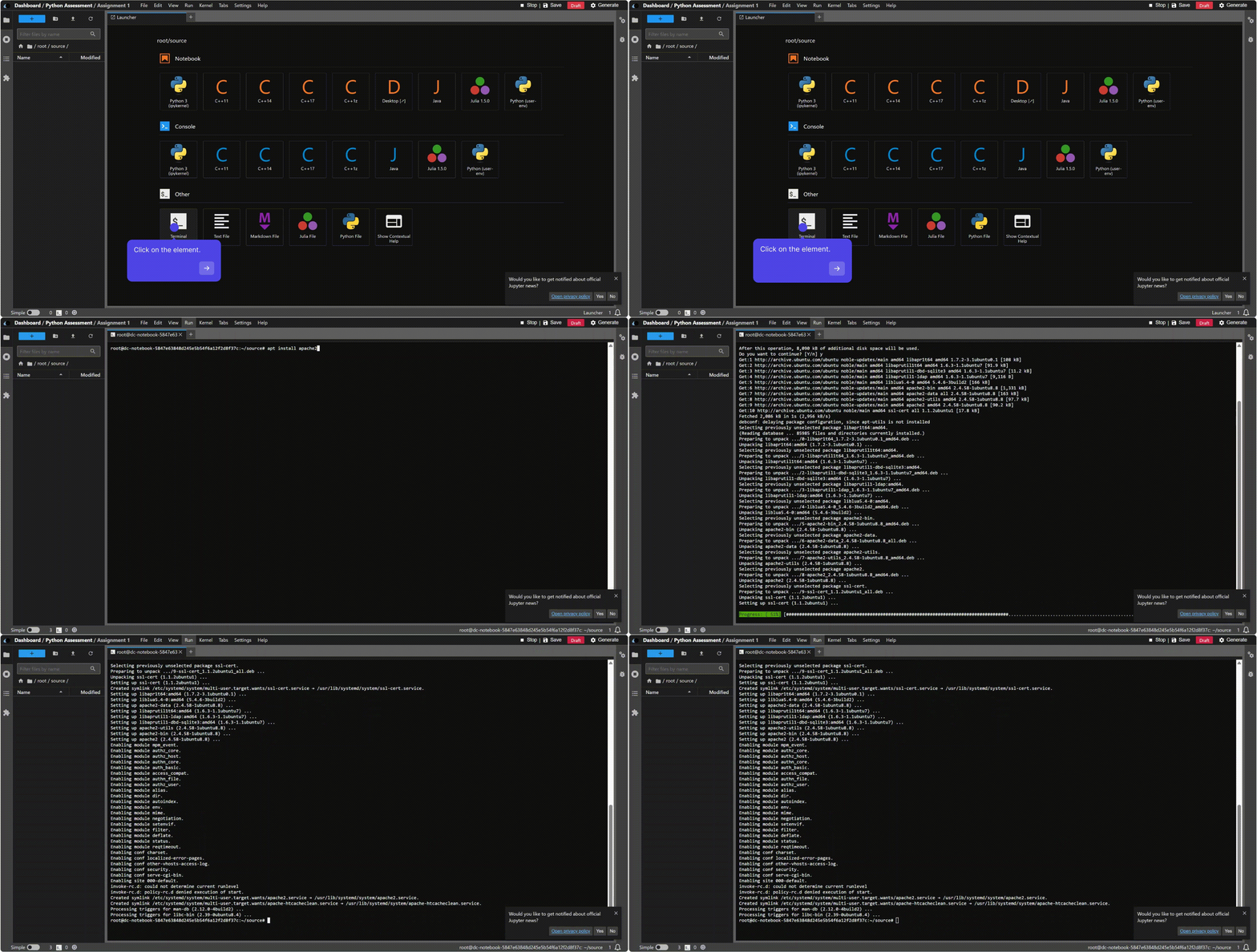
Install System Packages (APT)
Update package indexes:
sudo apt update
Install a package (example: Apache):
sudo apt install -y apache2
Verify installation:
apache2 -v
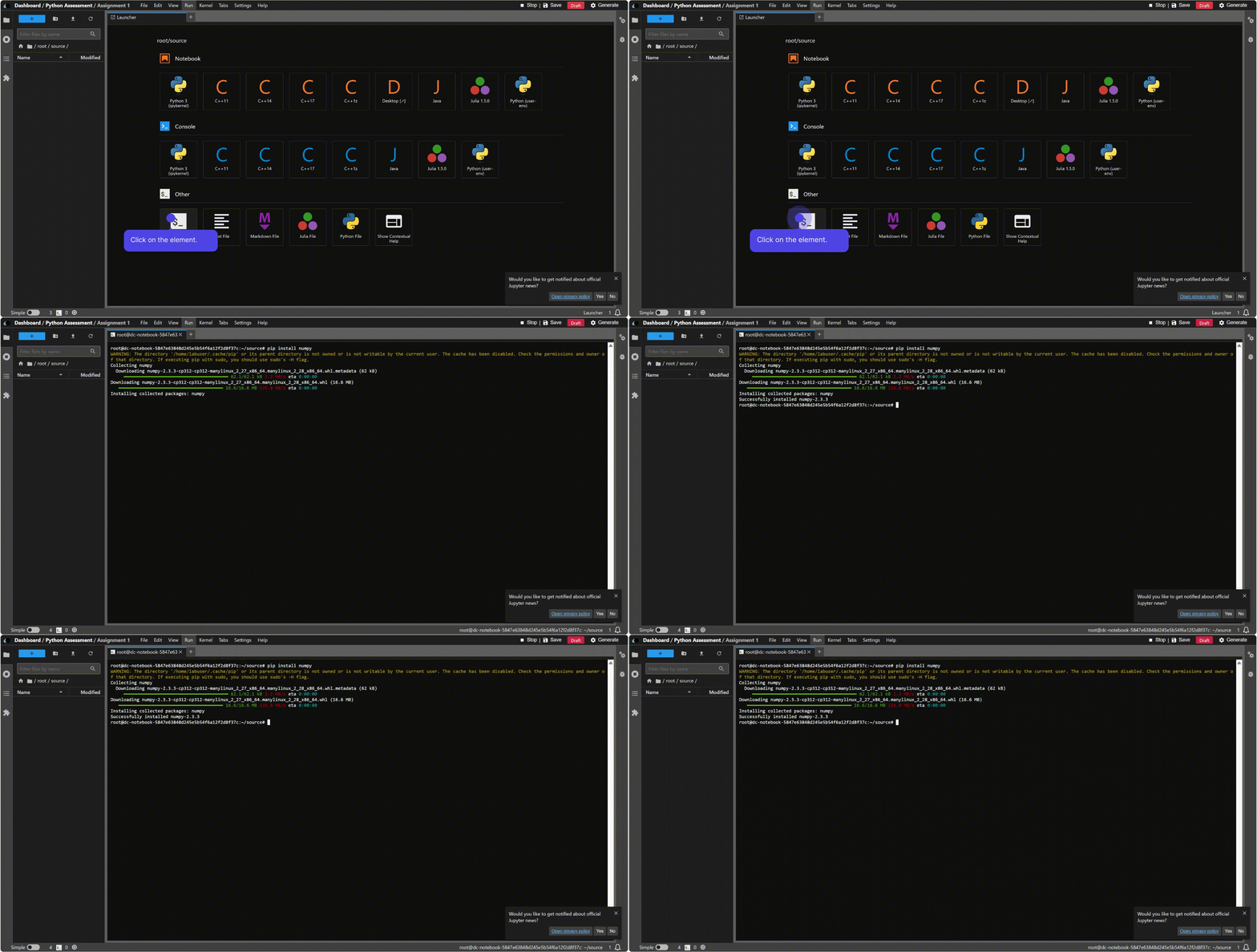
Install Python Packages (pip)
Single package:
pip install numpy
Multiple packages:
pip install numpy pandas matplotlib
Pin a specific version:
pip install requests==2.28.1
Verify installation:
python -c "import numpy as np; print(np.__version__)"
What You Can Install
- System packages: apt, snap
- Language libraries: pip (Python), maven (Java), npm (Node)
- Services/apps: databases, web servers, API frameworks
- Custom resources: datasets, config files, proprietary tools
Best Practices
- Plan dependencies: choose compatible versions and stable releases.
- Verify after install: run quick tests or check versions.
- Keep it reproducible: note versions and install at the course level.
- Prefer conda for scientific stacks or complex dependencies.
Quick Troubleshooting
- Package not found or index errors → run
sudo apt updatefirst. - Python package issues → try
pip install --upgrade pipor use conda. - Changes not reflected in notebooks → restart the kernel and rerun cells.