Cells and Shortcuts
Cells
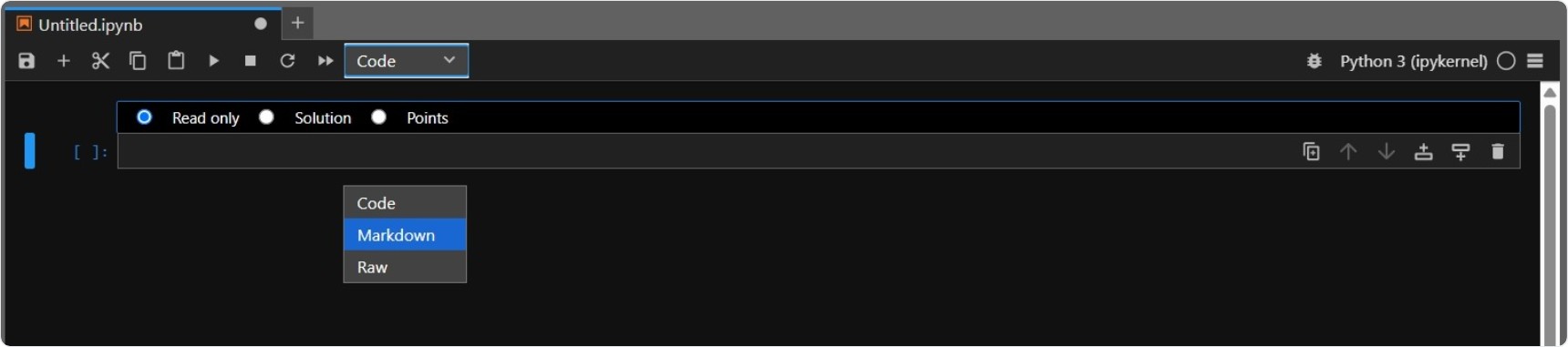
Cells are the fundamental building blocks of a notebook. Each cell contains a specific type of content — code, text, or raw data — and you can create as many as you need to organize your work.
Code Cells
Code cells are used to write and execute code.
When you run a code cell, the output appears directly below it.
Each code cell is labeled with an execution number (for example, In [1]), which shows the order in which the cell was run.
These numbers help you track your workflow — they may be non-sequential if cells are run out of order.
Markdown Cells
Markdown cells let you add formatted text to your notebook. Use them to:
- Write explanations or document your code
- Create headings and subheadings
- Add bullet points, numbered lists, and emphasis (bold, italics, etc.)
- Insert links, images, and mathematical formulas
- Provide analysis or commentary
When you run a Markdown cell, the plain text is rendered as nicely formatted content, turning your notebook into a readable report.
Raw Cells
Raw cells store unprocessed text that is not executed or rendered.
They’re typically used for embedding plain data or adding metadata and conversion instructions when exporting notebooks to other formats.
Most users primarily work with Code and Markdown cells, while Raw cells serve more specialized purposes.
Command Mode vs. Edit Mode
Notebooks operate in two modes, and understanding them helps you work efficiently:
Command Mode
In Command Mode, you work with entire cells — adding, deleting, moving, or copying them.
The cell border appears highlighted, indicating you’re controlling notebook structure.
Useful Command Mode shortcuts:
- A: Add a new cell above the current one
- B: Add a new cell below the current one
- X: Cut the selected cell
- C: Copy the selected cell
- V: Paste a copied cell
- D, D: Delete the selected cell (press D twice)
- M: Convert the cell to Markdown (for text)
- Y: Convert the cell to Code (for programming)
Edit Mode
In Edit Mode, you edit the content inside a cell.
The cell border appears green, and you’ll see a blinking cursor inside.
Useful Edit Mode shortcuts:
- Shift + Enter: Run the current cell and move to the next one
- Ctrl + Enter: Run the current cell but stay in it
- Alt + Enter: Run the current cell and create a new one below
- Ctrl + /: Comment or uncomment lines of code
- Esc: Exit Edit Mode and return to Command Mode
Essential Keyboard Shortcuts
Learning shortcuts greatly improves productivity. Here are the most essential ones:
| Action | Mode | Shortcut |
|---|---|---|
| Start editing a cell | Command | Enter |
| Stop editing a cell | Edit | Esc |
| Run cell and move to next | Edit | Shift + Enter |
| Run cell and stay in it | Edit | Ctrl + Enter |
| Add cell below | Command | B |
| Add cell above | Command | A |
| Delete cell | Command | D, D |
| Save your work | Both | Ctrl + S |
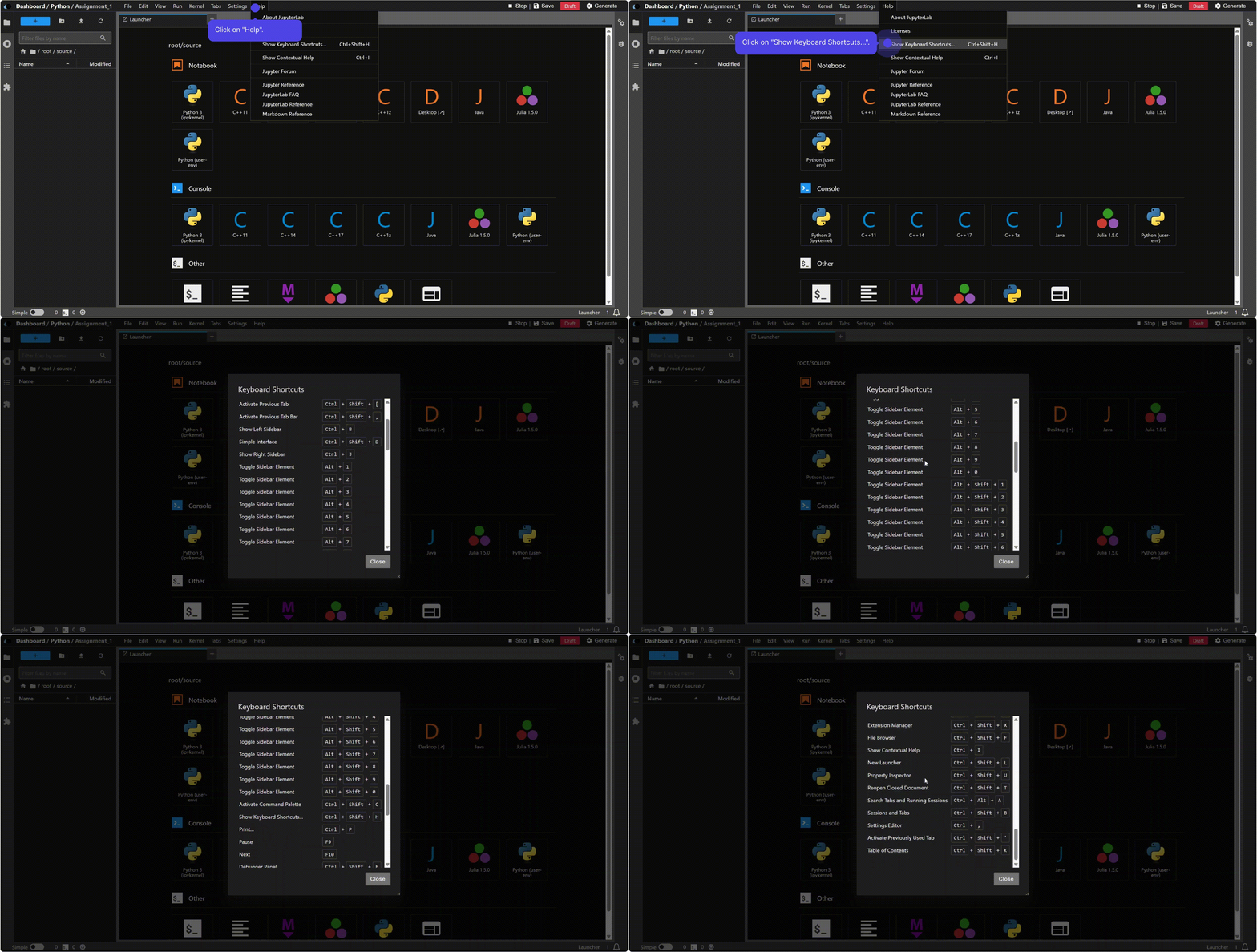
For a complete list of shortcuts, go to Help → Keyboard Shortcuts in the menu bar.