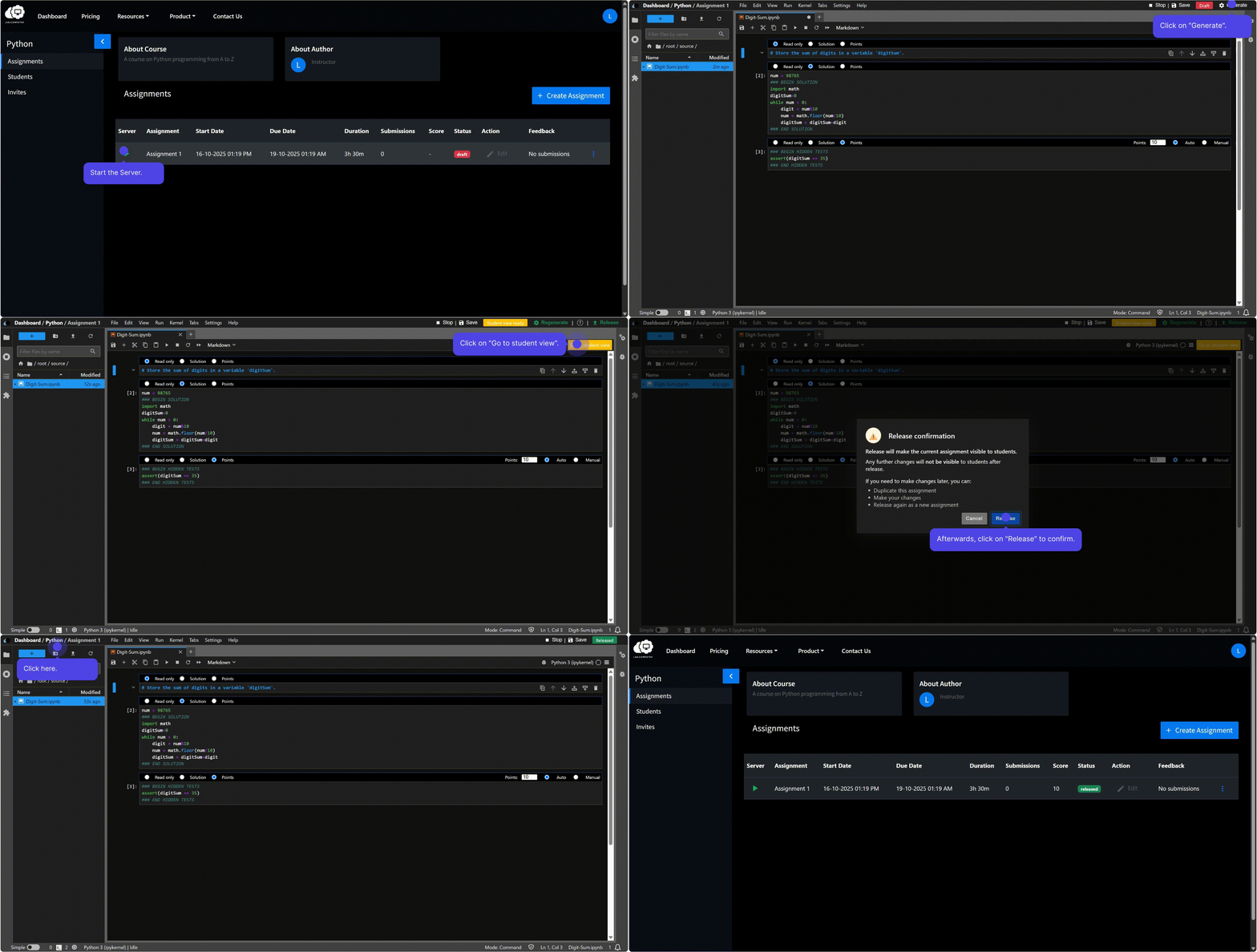
Generate and Release Assignment
Generating and Releasing Assignments
Before students can access an assignment, instructors must Generate a student‑ready version and then Release it.
Generate Assignment
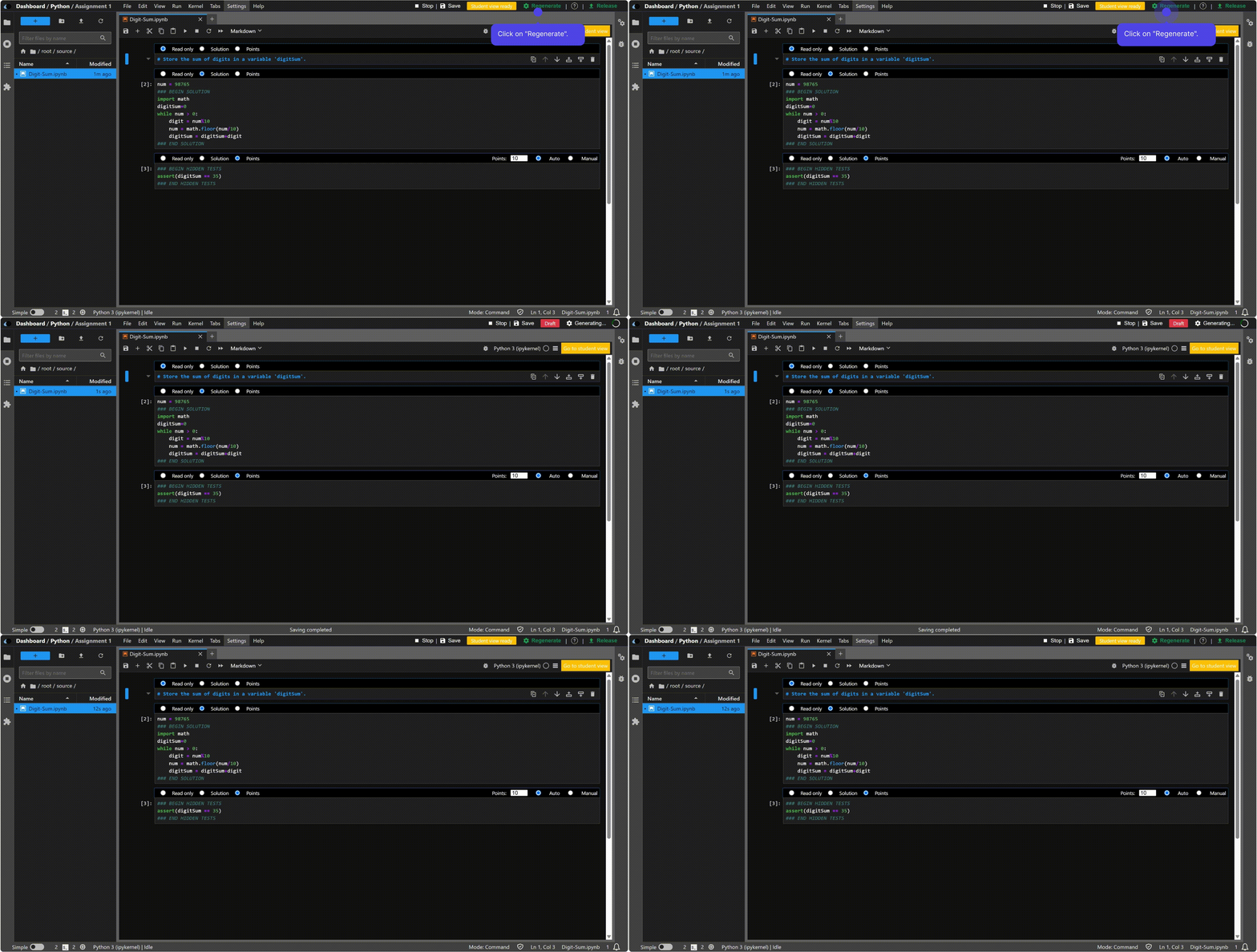
The Generate step prepares a student‑ready copy from the instructor’s notebook:
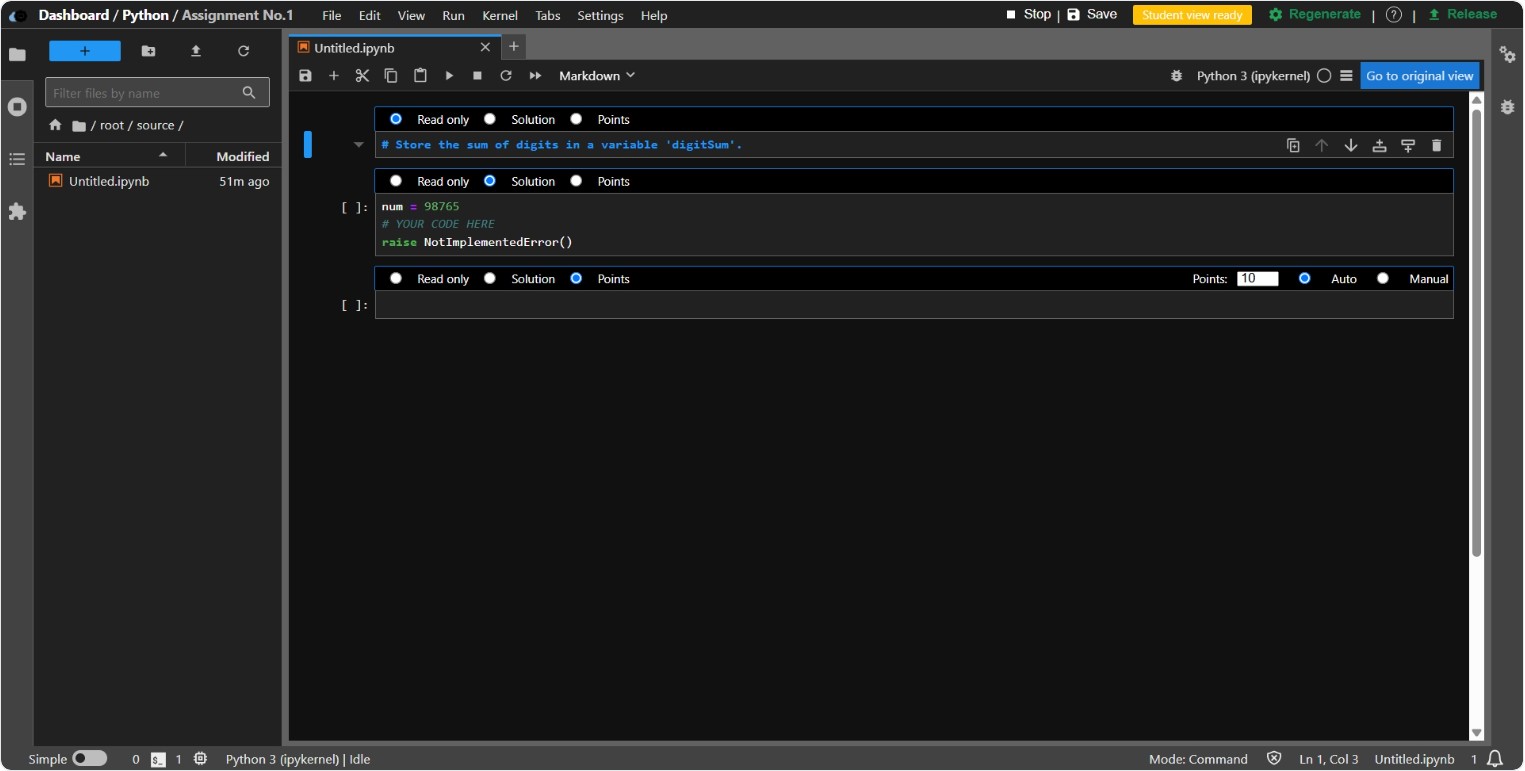
- Hides instructor solutions and confidential tests
- Inserts student placeholders (e.g.,
# YOUR CODE HERE) - Configures autograder tests and points
- Preserves Markdown instructions and visible tests
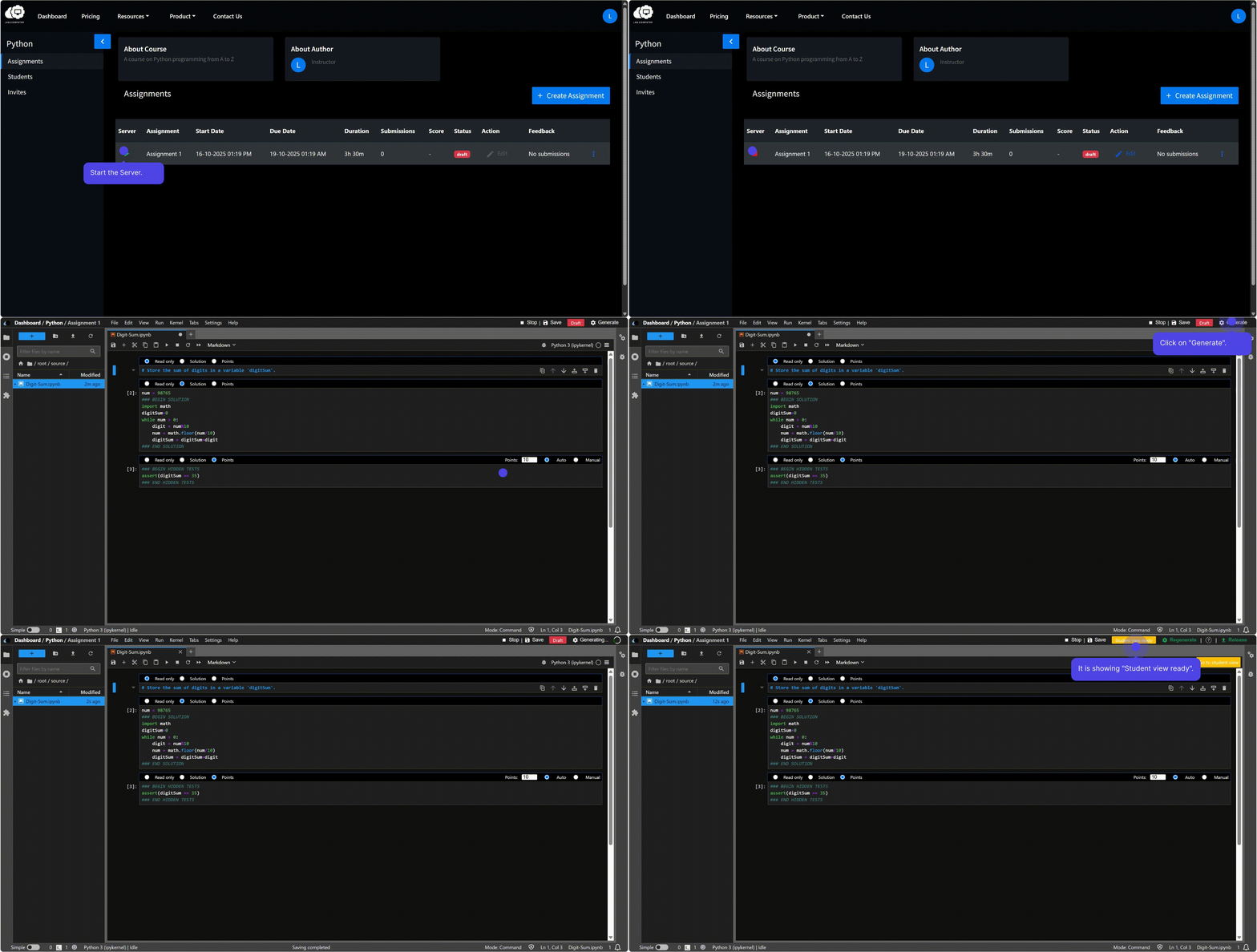
Preview (Student View) Use Student View to check that solutions are hidden, tests are correct, points are accurate, and Markdown displays properly.
Note
You can regenerate anytime to reflect changes in the instructor notebook.
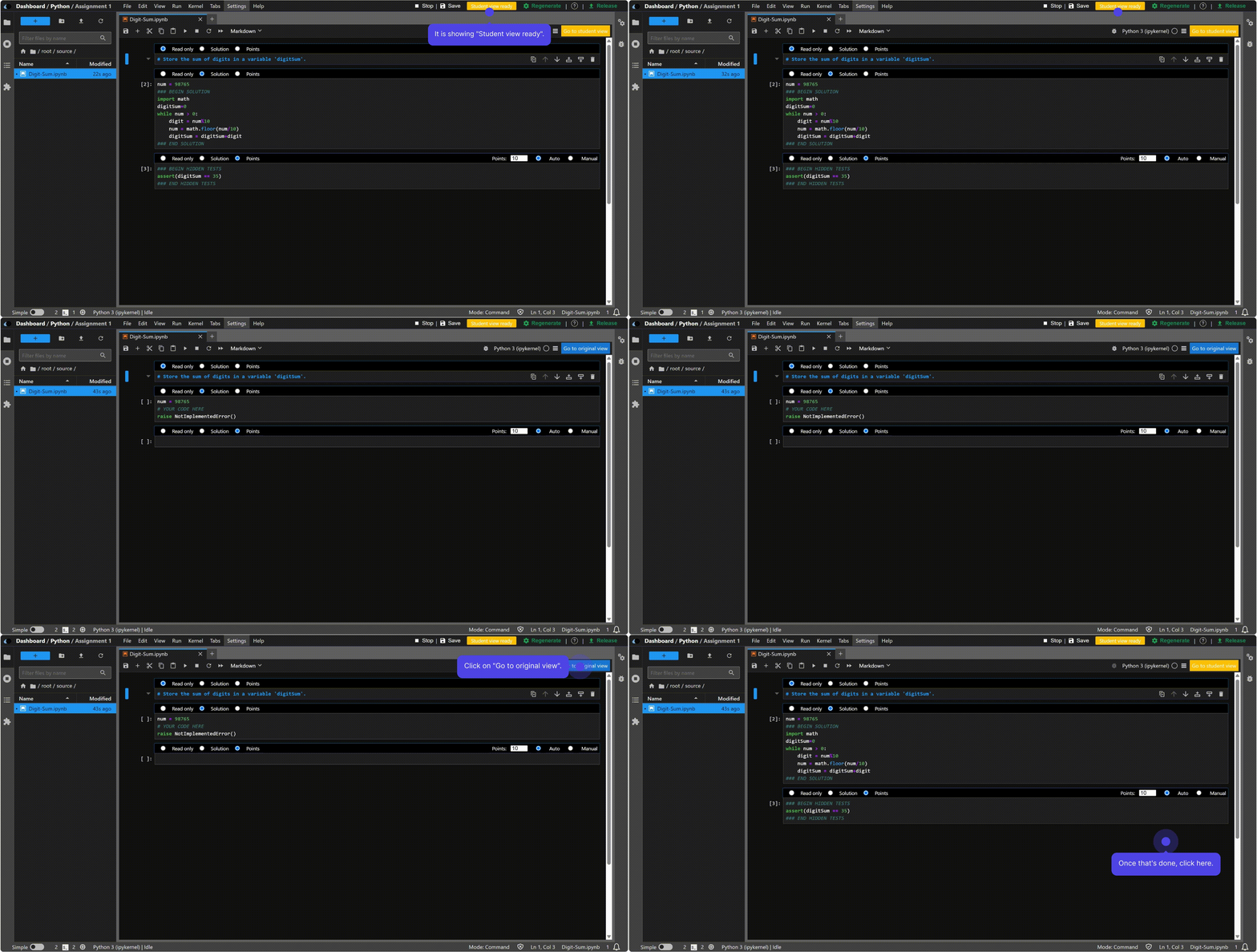
Release Assignment
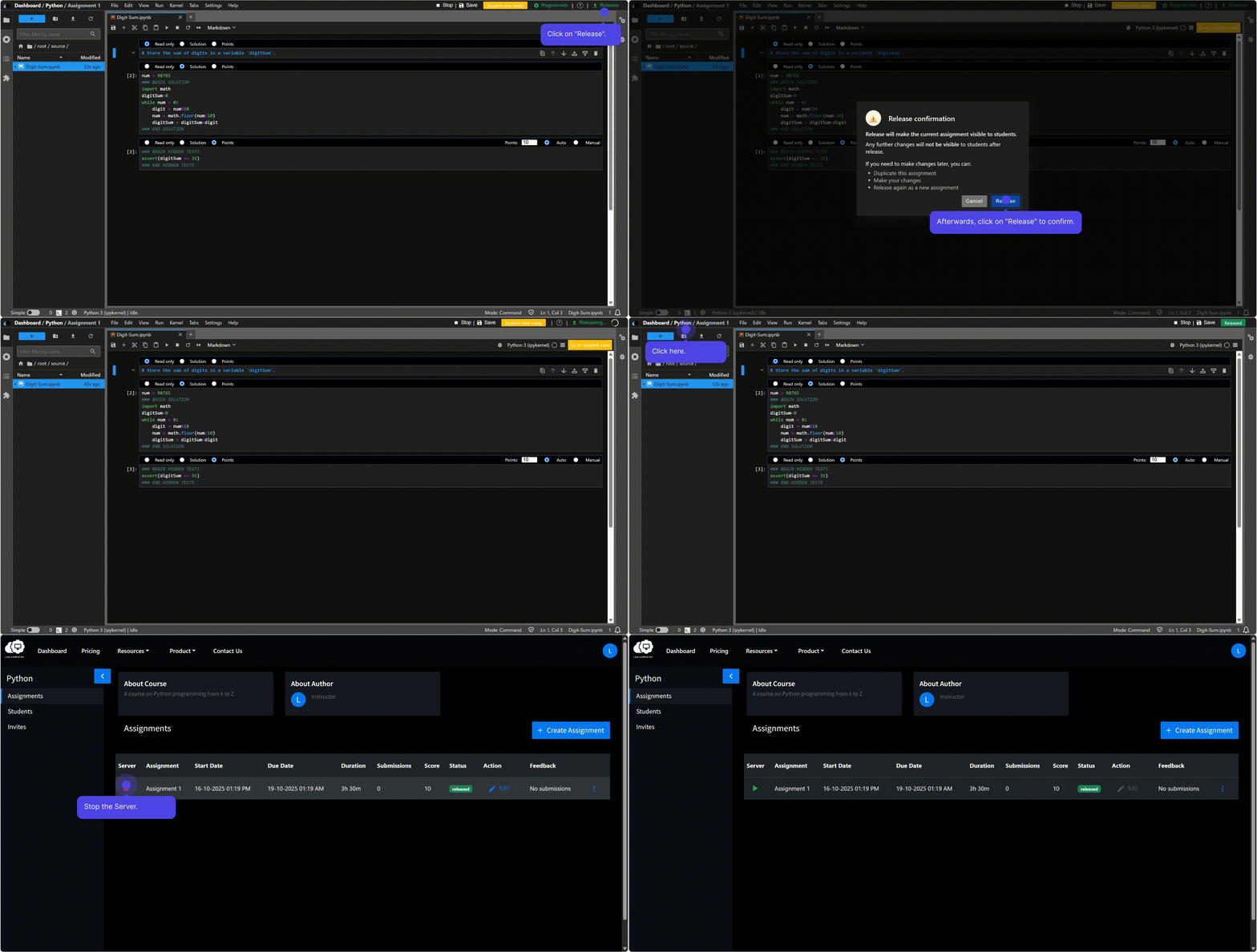
- After generation, click Release to make the assignment visible to students.
- Students can import and start working immediately.
- To make changes after release, clone the assignment, regenerate, and release the new version.
Pre‑Release Checklist
Verify the following before releasing:
- Solutions are hidden
- Points and tests are correct
- Instructions are clear and complete
- Student view looks correct
- Code stubs and Markdown display properly
- Due dates and resources are accessible
Note
Once an assignment is released, it becomes immediately available to all students enrolled in that course. No individual sharing actions are required.